The digital media landscape requires instantaneous access to information as trending stories and breaking news cycles accelerate at an unprecedented pace. Mashable, a prominent authority on digital culture and technology, provides a specialized alert system that allows users to receive real-time updates directly on their desktop or mobile devices without the need for constant manual refreshing.
This system is designed to streamline the delivery of breaking news, viral content, and consumer deals. By integrating with modern browser architecture, these notifications bridge the gap between a user’s daily workflow and the rapidly evolving internet culture. Understanding the technical requirements for these alerts is essential for users who prioritize timely information in a high-speed information economy.
The Evolution of News Delivery and Real-Time Alerts
The shift from traditional RSS feeds and email newsletters to browser-based push notifications represents a significant evolution in how media organizations interact with their audiences. In the current era of digital consumption, the "pull" method—where a user must proactively visit a website—is increasingly supplemented by "push" technology. This technology utilizes the Web Push API, allowing websites to send messages to a user’s device even when the specific website is not currently open in a browser tab.
For a publication like Mashable, which covers the intersection of technology, entertainment, and social media, the ability to reach users instantly is critical. These notifications are not merely headlines; they serve as a curated stream of digital culture, filtered through the lens of specialized editors. This ensures that the most relevant information reaches the user’s screen at the moment of impact.
How to set up Mashable push notifications on Google Chrome
Google Chrome remains the most widely used browser globally, and its notification management system is highly integrated into both desktop and mobile operating systems. For users on Android devices, the process begins by navigating to the Mashable website through the Chrome app. Typically, a prompt will appear at the bottom of the screen or near the address bar asking for permission to send notifications.
If the prompt does not appear automatically, users can manually trigger the permission settings. This involves tapping the three dots in the top right corner of the browser, selecting "Settings," and then navigating to "Site Settings." Under the "Notifications" tab, users can search for the Mashable URL and ensure that the status is set to "Allowed." This ensures that the device’s internal notification tray will receive and display incoming alerts from the publication.
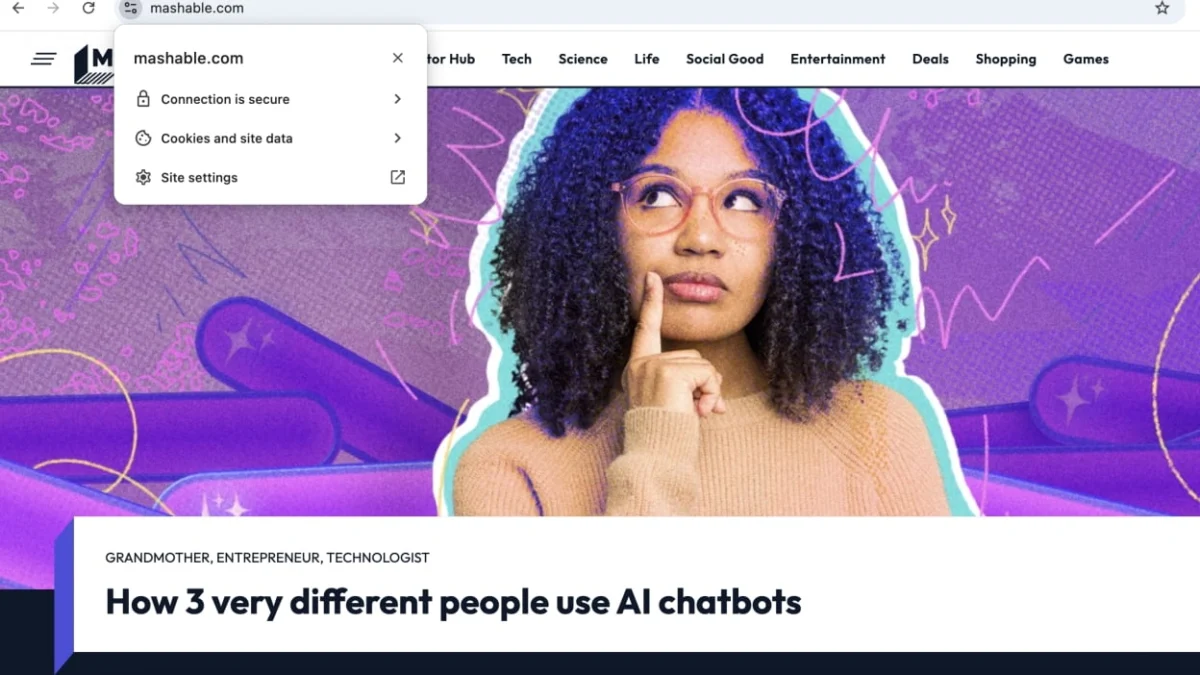
On a PC or Mac using Google Chrome, the procedure is similarly streamlined. Upon visiting the site, a "lock" icon or "site information" icon appears to the left of the URL in the address bar. Clicking this icon opens a dropdown menu where "Notifications" can be toggled to the "On" or "Allow" position. Once enabled, the browser will manage the delivery of these alerts through the system-level notification center of the computer.

Implementing Mashable Push Notifications on Safari and macOS
For users within the Apple ecosystem, Safari offers a deeply integrated notification experience that mirrors the aesthetic and functional standards of macOS. Setting up these alerts on a Mac requires a specific set of permissions that align with Apple’s strict privacy and user-experience protocols.
When a user visits Mashable via Safari, the browser may present a dialog box asking if the user wishes to allow the site to send push notifications to the macOS Notification Center. If this prompt is dismissed or blocked, it can be re-enabled through the Safari "Settings" menu (formerly "Preferences"). Under the "Websites" tab, users will find a "Notifications" section on the left-hand sidebar. Here, Mashable will be listed, and the user can select "Allow" from the dropdown menu adjacent to the site name.
The benefit of Safari-based notifications is their persistence. Unlike some browser alerts that may disappear after a few seconds, macOS allows users to configure these alerts as "Banners" or "Alerts." Banners appear briefly in the upper right corner, while Alerts remain on the screen until the user manually dismisses them or clicks through to the story. This level of customization is a key component for professionals who need to monitor news without being constantly distracted.
Compatibility with Microsoft Edge and Mozilla Firefox
Microsoft Edge, which is built on the Chromium open-source project, shares a similar notification architecture with Google Chrome but integrates more natively with Windows 10 and Windows 11. To enable alerts in Edge, users click the "lock" icon next to the URL and toggle the notification switch. This allows the Windows Action Center to categorize and display Mashable updates alongside other system-level messages.
Mozilla Firefox, known for its emphasis on user privacy and open-source standards, also supports the Web Push API. When visiting Mashable, Firefox users may see a small speech bubble icon in the address bar. Clicking this allows the user to "Allow" or "Always Allow" notifications. Firefox also provides a robust management console under "Settings > Privacy & Security > Permissions," where users can view and edit their entire list of allowed sites to ensure their notification feed remains uncluttered.
Advanced Troubleshooting for Notification Delivery
Even after a user has successfully opted into notifications via their browser, technical hurdles can sometimes prevent alerts from appearing. This is often due to a conflict between browser-level permissions and operating system-level restrictions. In the modern era of "Digital Wellness" and "Focus Modes," operating systems have become more aggressive in silencing notifications to prevent user distraction.
On a Mac, if notifications are enabled in Safari or Chrome but are not appearing, the user must check "System Settings" (or "System Preferences" on older macOS versions). Under the "Notifications" tab, the specific browser must be authorized to deliver alerts. If "Allow Notifications" is toggled off at the system level, no browser-based alerts will ever reach the screen, regardless of the website’s settings.
Similarly, Windows users must navigate to "Settings > System > Notifications." Here, they must ensure that the master "Notifications" switch is on and that their chosen browser is permitted to "show notification banners" and "show notifications in notification center." Windows 11 also features a "Do Not Disturb" mode that can be scheduled or manually enabled, which will suppress all incoming Mashable alerts until the mode is deactivated.

The Role of Focus and Do Not Disturb Modes
A significant development in modern computing is the "Focus" or "Do Not Disturb" feature. On macOS and iOS, "Focus" allows users to filter notifications based on their current activity, such as "Work," "Gaming," or "Sleep." If a user is wondering how to set up Mashable push notifications effectively, they must also understand how to whitelist certain applications within these Focus profiles.
If a user is in a "Work" Focus mode, they must explicitly allow their browser to "break through" the silence if they wish to receive Mashable alerts during those hours. On Windows, the "Focus Assist" feature serves a similar purpose. It can be set to "Priority Only," meaning only apps on a specific priority list can send notifications. Users who rely on Mashable for market-moving tech news or time-sensitive deals should ensure their browser is added to these priority lists to avoid missing critical updates.
Impact of Push Notifications on Digital Culture and Consumer Behavior
The broader implication of push notification technology is its impact on consumer behavior and the speed of digital culture. By opting into these alerts, users are participating in a real-time information loop. For Mashable, this means their reporting on social media trends, artificial intelligence, and digital entertainment can influence public discourse the moment a story breaks.
From a consumer perspective, the "hottest deals" aspect of these notifications is particularly impactful. In an era of flash sales and limited-time digital offers, receiving an alert seconds after a deal is published can be the difference between securing a product and finding it out of stock. This utility transforms the notification from a mere news headline into a functional tool for the modern consumer.
Privacy and Data Considerations in Notification Systems
While push notifications offer significant convenience, they also operate within a framework of digital privacy. Browser-based notifications are "opt-in" by design, meaning a website cannot send alerts without explicit user consent. This is a fundamental tenet of modern web standards, intended to prevent the "spamming" of users.
Furthermore, these notifications do not typically require the user to provide personal identification such as an email address or phone number. The "handshake" occurs between the browser and the website’s server using a unique, anonymized token. Users retain full control over this relationship and can revoke access at any time through their browser settings, making it one of the more privacy-conscious ways to stay informed in the 21st century.
Conclusion of the Setup Process
Once the browser permissions are granted and the operating system settings are aligned, the setup process is complete. The system is designed to be "set and forget," requiring no further intervention from the user. As Mashable’s editorial team publishes new content, the alerts will automatically appear on the user’s device, formatted according to their specific OS preferences.
This seamless integration represents the current peak of web-to-user communication. By following the outlined steps for Chrome, Safari, Edge, or Firefox, and ensuring that system-level "Focus" settings are not inadvertently blocking the feed, users can ensure they remain at the forefront of the digital conversation. The ability to manage these alerts effectively is a vital skill for anyone navigating the complexities of the modern internet.